When creating a tutorial, each step is automatically assigned an action based on what the creator did during the capture process. What some don’t realize is, once you’re in the editor, there are additional options for the actions Click, Type, and Info.
CLICK
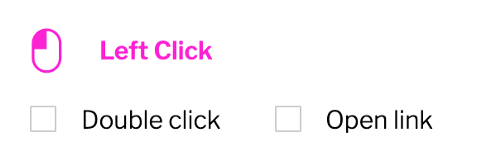
The “Click” action includes “DoubleClick” & “Open Link.” Check “Open Link” and populate the text field with a valid URL to open a new tab with the specified URL upon clicking the highlight box. The learner will need to close the tab when finished & return to the tutorial to continue through the tutorial.
The tutorial below will show you where these are located in the interface and how to apply them.
1. After opening up the Tutorial editor, find a step with the "click" action. You'll see two options, Double Click & Open Link.
You can only have one highlight box on "Click" Steps. However, for a "Type" Step, you can add an additional "Click" box.

2. Check the Double Click checkbox, if you'd like the learner to double click on the highlight box to advance the player on this step.

3. Click the Open link checkbox, if you'd like a new tab to open when the learner clicks the highlight box on this step.

4. Click Enter a link

5. Type the Hyperlink URL you'd like the new tab to open up.

6. Click Add

7. That's it. Those are the options within the "Click Tool."

Here's an interactive tutorial
https://www.iorad.com/player/1594822/Click-Tool-Options--DoubleClick---Open-Link
TYPE
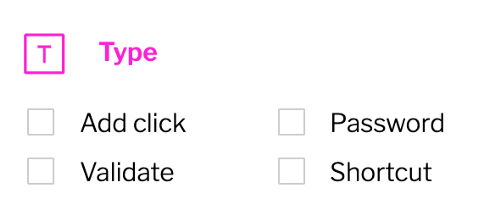
Our “Type” action comes with a few options as well, including “Add Click,” “Password,” “Validate,” “Match Case,” and “Shortcut.” “Add Click” will add an additional “click highlight box” on the same step as the type action. A common scenario for applying the “add click” is on a login page. The user will type their password & immediately click “login.”
This brings us to the next option, “password.” This could be applied to password text fields, so when the learner types in the text field the characters will show as password dots.
It is important to note, iorad does NOT store or save any data typed into the text fields, whether it be during tutorial creation or as the learner is interacting with the tutorial player.
Next we have the “Validate” option. As a creator, you have a few of options. You can choose to leave the text field in the editor blank, type a response that provides extra guidance, or validate the entry. If the text field is left blank, the learner can type anything to advance to the next step. However, if the creator types something & checks “Validate,” then the learner must type that exactly in order for the player to advance.
Piggybacking off of this is “Match Case.” The “Match Case” option would turn the text field case sensitive. For example, the creator types in “Save” with a capital “S,” the learner must type in “Save” with a capital “S” to advance to the next step.
The following tutorial will simulate how to apply these options.
1. Upon opening the Tutorial editor, for a "type" step, you'll see four options. Add click, Password, Validate and Shortcut.

2. The shortcut option is automatically "checked" when you've captured using Shortcut keys.
It'll also insert those key functions in the type field for you.

3. Additionally, you can manually set it by first adding those key shortcuts in the type field & then the Shortcut checkbox is automatically selected.

4. Click Add click, if you'd like to add a highlight box for the learner to click on the same screen after typing.
Note: This is the only action that allows two highlight boxes on one step.

5. Click on the 2nd highlight box to select it.

6. With your mouse, click and drag highlight, then drop it on highlight to resize the click box.

6b. Drop

7. Click Password, if you want the placeholder text & the learners text to show as a Password with the privacy dots.

8. You'll now see the text has been changed to privacy dots. As it will be displayed when the user inputs in the tutorial.

9. Click Validate, if you'd like the type field to validate the users entry.

10. Click Match Case, if you'd like the text that your learner types into the text field to be case sensitive in order for the player to advance.
Example: If you type "Flight" with capital F in the editor. The learner must type "Flight" with capital F.

11. Doubleclick in Leave blank or enter answer here to insert text that you want the learner to have to mimic in the player to advance to the next step.

12. Type your Text.
In this example, I typed "Flight 2345"

13. Click Case which will toggle it to NUM.

14. Doubleclick Leave blank or enter answer here

15. Type 2345

16. Having Validation on + NUM will require the learner to type in what you have here but it will also prevent them from typing anything but a number.

17. To allow the learner to type any number but ensure they enter only numbers, clear out the value 2345.

Here's an interactive tutorial
https://www.iorad.com/player/1594835/Type-Tool-Options
Info
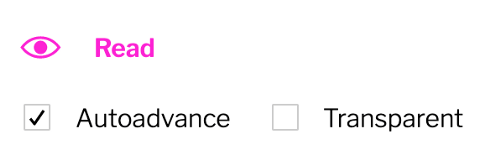
The Info option is great for giving the learner more information around why or when they would perform the following actions. There are only two additional options for the “Info” action, which are “Auto-advance” and “Transparent.” “Info” actions are set to Auto-advance by default. It will advance in .3 sec per word. You can uncheck it if you would prefer your learner to advance the step by clicking “next” on the highlight box.
The other option is “transparent,” a highly requested feature to be able to “remove” the highlight box from the screen. The highlight box is important for the app to know what part of the screen to focus in on but sometimes isn't necessary for the learner to see. An example of this is when you just want to provide information about a step with no action necessary by the learner. Check “transparent” to make the highlight box become transparent. When the learner takes the tutorial, they will not see the box on the Info step. [Please note, the box will remain visible to the creator while in the editor.]
Check out the tutorial to see how to remove “auto-advance” or to apply transparency to the highlight box.
1. Our info tool can be used a number of ways. Let's go over some of the options and how they work.
First, open a tutorial to the Editor and click on a "Info" Step.

2. Click Autoadvance, if you would like the learner to click next to advance.
"Info" is set to Autoadvance by default. It will advance in .3 sec per word.

3. Auto-advance is calculated using the Step text word count as well as the audio associated with the step.
To advance the step sooner: use less words and trim the audio file. To advance slower: add words and extend the length of the audio file.

4. Click Transparent, if you wish to hide the highlight box on this step.
Please note: It'll show in the editor view but not for the learner. You can't "delete" the box but you can make it transparent. It's used as a marker to know where to focus.

5. That is how to remove autoadvance on "info" steps and apply a transparent highlight box.

Here's an interactive tutorial
https://www.iorad.com/player/1597225/Info-Tool-Options--Auto-advance---Transparent-Box
Hope you find this helpful & that it can help you become an iorad power-user!