

Introduction
When teams inherit a mix of PDFs, slide decks, videos, job aids, and tribal knowledge, content becomes inconsistent fast. Some assets are outdated. Some are buried in folders. Some are great but hard to find. Others need to be rewritten or turned into something more interactive.
This worksheet gives you a simple, repeatable system to audit your product, software, and process training content. It will show you what to keep, what to update, what to convert into interactive tutorials, and what to retire.
Work through each section and fill in the tables as you go. The goal is not more content. The goal is better content that supports your learners across their entire journey and can be maintained easily as your product evolves.
Two Ways to consume this guide
1. Use a CustomGPT to automate audit
We took all the contents of the guide below and we put it behind a custom GPT where you could just upload your content asset and it'll run it through the rubric and scoring mechanisms below and audit for you
2. Manually go through the guide below
You can use the content we have below as a worksheet and follow step by step. This is a great way to be more hands on and add your own rubric or additional scoring mechanisms to your audit.
1. Using CustomGPT
If you prefer to use the custom GPT, here's a video explaining how it works.
Access Content Auditor GPT here.
2. Manually go through the guide
1. Content Inventory
Start by gathering everything you have today across every source. Visibility comes first.
- PDFs
- Slide decks
- Videos or recorded walkthroughs
- Job aids
- Internal wiki pages
- Confluence
- SharePoint
- Google Drive folders
- Old LMS modules
- Email attachments
- Slack or Teams threads
- Anything that teaches someone how to use your product or follow a process
Content Inventory Table
Use this table to list every asset you plan to audit.

2. Audit Each Asset
Duplicate this section for every item in your inventory.
Asset Name:
(Type here)
Link or location:
(Paste here)
A. Clarity and specificity
- Explains why the workflow matters
- States when it is used
- Defines who the content is for
- Explains expected learner outcomes
- Jargon free
- Clear and specific steps
Clarity Score (1 to 5): _____
B. Actionability
- Steps are numbered
- Instructions are precise
- Shows the real workflow
- Learner can complete the task using this alone
Actionability Score (1 to 5): _____
C. Multi modality alignment
- Includes visuals or screenshots
- Includes examples
- Provides context before the clicks
- Supports different learning styles
Modality Score (1 to 5): _____
D. Active vs passive learning
Passive formats
- PDFs
- Long videos
- Slide decks
Active formats
- Interactive tutorials
- Simulations
- Guided practice
- Click through workflows
Is this asset active or passive? __________
Should this be converted to an interactive tutorial? Yes / No
E. Discoverability
- Easy to find
- Lives in a central hub
- Tagged by role
- Not buried or duplicated
- Surfaces in the tools where work happens
- Accessible across the learner journey
Discoverability Score (1 to 5): _____
F. Maintenance and governance
- Clear owner
- Last updated date included
- Easy to edit
- Screenshots not outdated
- Not dependent on tribal knowledge
Maintenance Score (1 to 5): _____
G. Relevance and outcomes alignment
- Supports actual job to be done
- Reflects current workflows
- Reduces errors or confusion
- Avoids duplication
- Still necessary today
Relevance Score (1 to 5): _____
Total Score
Add all scores: ______ / 35
3. Audit Scoring Table
Use this table if you want to score multiple assets at once.

4. Categorize Each Asset
Place every item into one of these four buckets.
Categorization Table

5. Convert to Tutorial Prioritization
Identify which workflows should become interactive tutorials first.
Tutorial Prioritization Table

6. Content Governance
Define ownership and maintenance so content stays accurate over time.
Governance Table

7. Learner Journey Coverage
Ensure each workflow has content across all four stages.
Learner Journey Coverage Table

8. What To Build Next
This table turns the audit into a roadmap.
Build Roadmap Table

9. Retirement Tracking
A clean removal process avoids confusion and content sprawl.
Retirement Table

10. Rewrite Planning
Use this table if assets need major rewrites.
Rewrite Planning Table

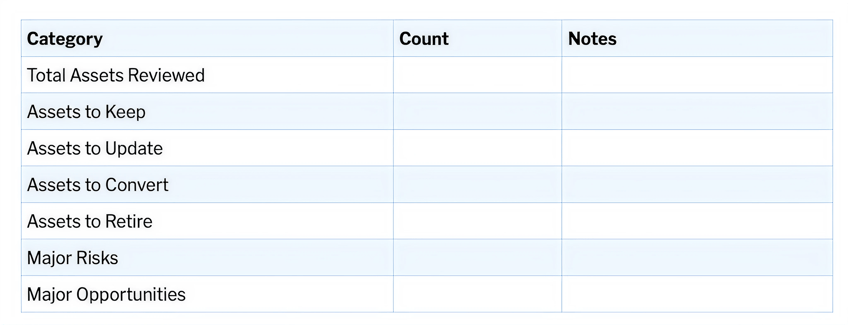
11. Executive Summary
Helps teams summarize findings to stakeholders.
Summary Table
12. Example Tutorials
Here's an interactive tutorial
13. Final Notes
Once this audit is complete, you will have a fully documented picture of your training ecosystem. The next step is to rebuild high value workflows as interactive tutorials, retire outdated content, and maintain a clean, learner centered training library that supports onboarding, ramp, daily work, and refresher moments.