
Quiz Mode for Tutorials

1_iLvNFaSFUy2NIz5q7pShig

Introducing Quiz Mode for iorad Tutorials

You asked … and we’ve answered. We’ve heard the request a number of times — do you have a quiz mode? Our new answer is yes! This is the first iteration of the quiz feature, so you can expect to see some tweaks as we listen to your feedback.

The learner gets to interact with the iorad player similar to “interactive mode”; however, the highlight marker is hidden from them.
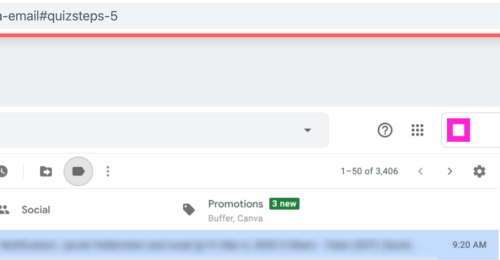
As they complete the steps without highlight marker prompting, the player advances, except when they make a mistake. It will flash a red line at the top of the player & not advance until the learner performs the appropriate action.

On the Settings page, you’ll now see a Quiz option under “Advanced Modes.” Leave the default “Acceptable Time for Task” or choose to select a custom time.
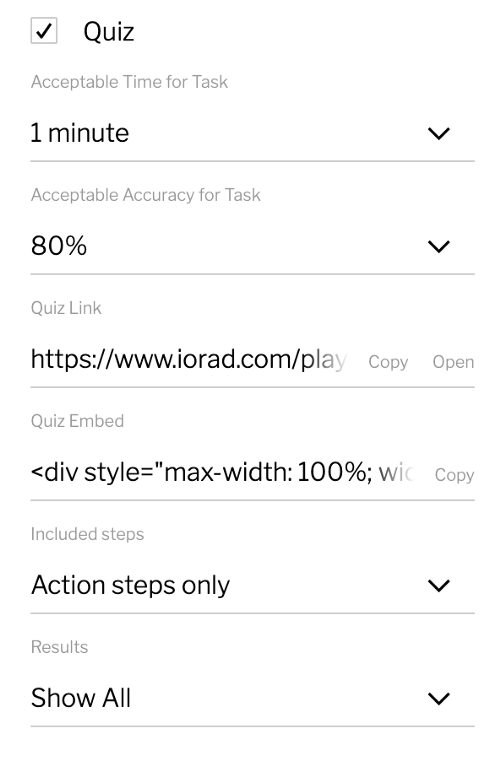
Choose to Include “All steps” or “Action steps only.” This means it will leave out any “Read” steps in the Quiz mode.

Lastly, you can select which Quiz Results you’d like to show to the learner at the end. The options include: All, Accuracy Only, Speed Only, or None.

After you’ve made your selections, copy the Quiz Link or Embed Code to share it with your learners.

Quiz Results
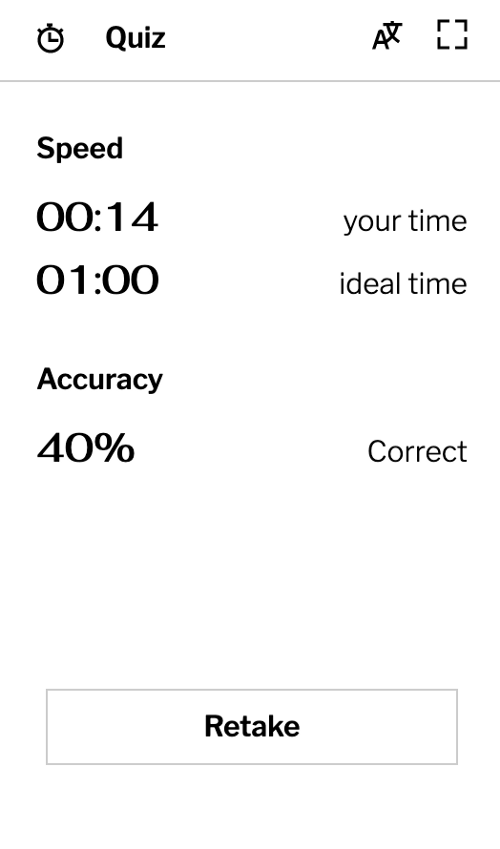
Let’s talk about the quiz results. Currently, after the learner completes the tutorial, they will be given their Speed & Accuracy results. This information is only viewable to the learner following the completion of the quiz. It is not saved anywhere within iorad; therefore, navigating away or refreshing the screen will reset the results.

You can, however, instruct your learners to take a screenshot of their results & submit them to you.

Hope you enjoy using the new quiz feature & please reach out with any feedback.

Learn how to enable quiz mode to allow your learners to self assess.

1. Think of the iorad quiz mode as a Self assessment tool. If you'd like to enable quiz and allow your learners to measure their speed & accuracy here's how.
First, click on the Tutorial you would like to enable Quiz Mode.

2. Click Settings

3. Click Advanced

4. Click Quiz.

Please note: This is enabling quiz mode but you'll also want to choose which player types the quiz mode is visible on. Learn more.

5. Click Settings

6. To change the Acceptable Time for the Task, click the Time Dropdown

7. Click Edit to change to a custom set time rather than your capture time.

8. Type a Custom Time

9. Click Done

10. Click the Acceptable Accuracy for Task dropdown

11. Click Edit

12. Type your Custom Accuracy Percentage

13. Click Done

14. Copy or Open the Quiz Link to share the tutorial in Quiz Mode.

Copy the Quiz Embed Code to embed the Player in Quiz Mode.

15. Click the "Included Steps Dropdown" to select which steps are included in the Quiz.

16. Choose between "Action steps only" or "All Steps." Choose All steps to include "info steps" in the quiz.

Click All steps.

17. Click Results dropdown to select which Results are shown to the learner at the end of the quiz.

18. Options include: Show All, Show Accuracy Only, Show Speed Only, and Show None.

Click Show All to include Accuracy & Speed.

19. Click here to Mute Audio in Quiz mode, so it is Muted by default.

20. Click here to Mute video in Quiz mode, so it is Muted by default.

If this is grayed out that means video is not a part of your plan.

21. Click here to Mute music in Quiz mode, so it is Muted by default.

22. That's it. You've learned how to enable & set up quiz mode.

If your learners log into iorad to take the quiz- you can track their quiz results in the learner dashboard.

Here's an interactive tutorial

https://www.iorad.com/player/1641543/Enable-Quiz-Mode--Measure-Speed---Accuracy